DimTrip vs Excel and Google Sheets for trip planning
Where spreadsheets still win, where manual travel sheets start to break down on revision five, and how DimTrip lets you plan with AI and still export a real 9-tab .xlsx workbook.
Updated 29 November 2026
Most people who plan a detailed trip eventually end up in Microsoft Excel or Google Sheets. A spreadsheet is free, flexible, familiar to everyone in the group, and lets you build any budget table you want. The frustration starts on revision five — when a flight moves, a museum turns out to be closed on Mondays, or three friends leave conflicting comments across two tabs.
Below is an honest comparison between DimTrip and Excel / Google Sheets for building and running a real trip — where spreadsheets still win, where they start to break down, and how you can plan with DimTrip's AI assistant and still export a full 9-tab .xlsx workbook whenever you want spreadsheet control.
Side-by-side comparison
| DimTrip | Excel / Google Sheets | |
|---|---|---|
| First draft | Describe dates, pace, and interests once; the AI builds days, stops, start times, and a starting budget | Start from a blank grid or clean up a downloaded template row by row |
| Editing mid-trip | Chat in plain words ("move lunch to 13:00", "swap Monday's museum") and the live schedule updates directly | Manually retype rows, shift times, update formulas, and re-check opening hours yourself |
| Delete safety | AI asks before deleting by default; one-tap Undo in chat recreates deleted stops or expenses | Manual Ctrl+Z or hunting through Google Sheets version history |
| Booking intake | Drop a booking screenshot or PDF into chat; the assistant extracts dates, times, and confirmation numbers | Copy-paste confirmation codes, addresses, and check-in times by hand |
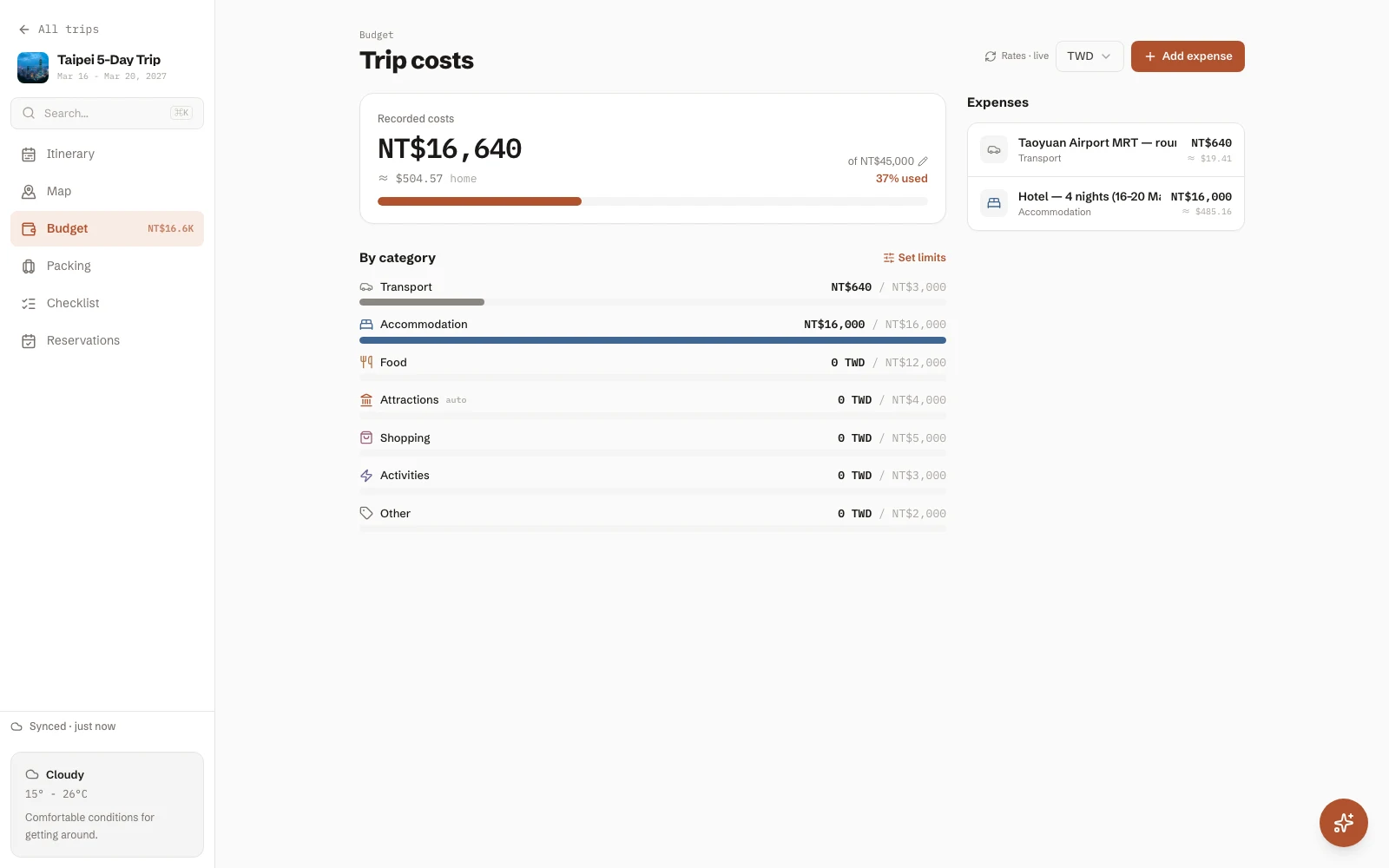
| Multi-currency budgets | 46 currencies with automatic conversion using the latest available daily exchange rates, plus category limits | Manual exchange-rate columns or custom GOOGLEFINANCE formulas that occasionally break |
| Map & week overview | Built-in week grid, day timeline, interactive map pins, and weather in one place | Separate Google Maps list in another browser tab |
| Collaboration | Live sync with Editor and Viewer roles (up to 3 invited collaborators on Free; more on Pro) | Free link sharing and simultaneous editing in Google Sheets (subject to Google's sharing and simultaneous-editor limits) |
| Offline access | Previously synced trips stay readable offline as an installable PWA; stop, packing, and checklist edits queue offline (standalone expense/budget writes need a connection) | Local .xlsx files work offline natively; Google Sheets requires enabling offline access (recent files may cache automatically; mark the trip sheet available offline before leaving) |
| Export & lock-in | Free PDF and 9-tab .xlsx export (compatible with Excel, Google Sheets, and Apple Numbers) | Native .xlsx / .csv / PDF; zero vendor lock-in |
Where Excel and Google Sheets still win
Spreadsheets have survived thirty years of travel apps for good reasons:
- Zero new accounts for your travel companions. Everyone already knows how to open a shared Google Sheet link or an emailed
.xlsxattachment. - Arbitrary custom formulas. If you want weighted per-person cost splits, credit-card foreign-transaction fee models, or custom packing weight sums in grams, a spreadsheet lets you write any formula you can imagine.
- Native desktop file ownership. An
.xlsxfile sitting in your laptop folder or cloud drive does not depend on any web service staying online.
If you are planning a two-day weekend getaway or travelling with a group that refuses to sign up for a new tool, a plain table is often enough. You can grab a clean starting structure from our hour-by-hour itinerary template.
Where spreadsheets start to hurt
A travel sheet usually feels great on Day 1 of planning and painful by Week 3:
- Cascading time edits. Shifting a morning sight by an hour means editing four rows underneath it and checking whether lunch still fits before a booked entry window.
- Split context between tabs and maps. A row that says
"14:00 National Palace Museum"does not warn you that it sits across town from your 12:30 lunch stop. You bounce back and forth between the sheet and Google Maps to catch geography mistakes. - Multi-currency drift. Paying a hotel deposit in USD, train tickets in JPY, and street food in local cash forces you to maintain exchange-rate lookup cells and fix broken range references whenever someone inserts a row.
- Booking confirmations scattered in email. Copying flight numbers, hotel cancellation deadlines, and addresses into a "Bookings" tab is tedious — so most groups stop updating it halfway through planning.
How DimTrip bridges the gap (without trapping your data)
DimTrip is designed for people who like the clarity of an hour-by-hour spreadsheet, without maintaining cells by hand:
- Live structured edits instead of chat walls. Instead of copying text out of ChatGPT into a spreadsheet, you chat with DimTrip's assistant and it writes stops, start times, stays, budgets, and packing items straight into your live schedule.
- Guardrails on destructive changes. Additions happen immediately; deletions wait for your confirmation by default (unless you toggle Auto-approve in chat), and deleted stops or expenses can be added back with one tap.
- Drop screenshots or PDFs instead of typing. Paste a hotel confirmation screenshot or airline PDF into the assistant to log dates, addresses, prices, and confirmation numbers into Reservations.
- One-click 9-tab Excel (
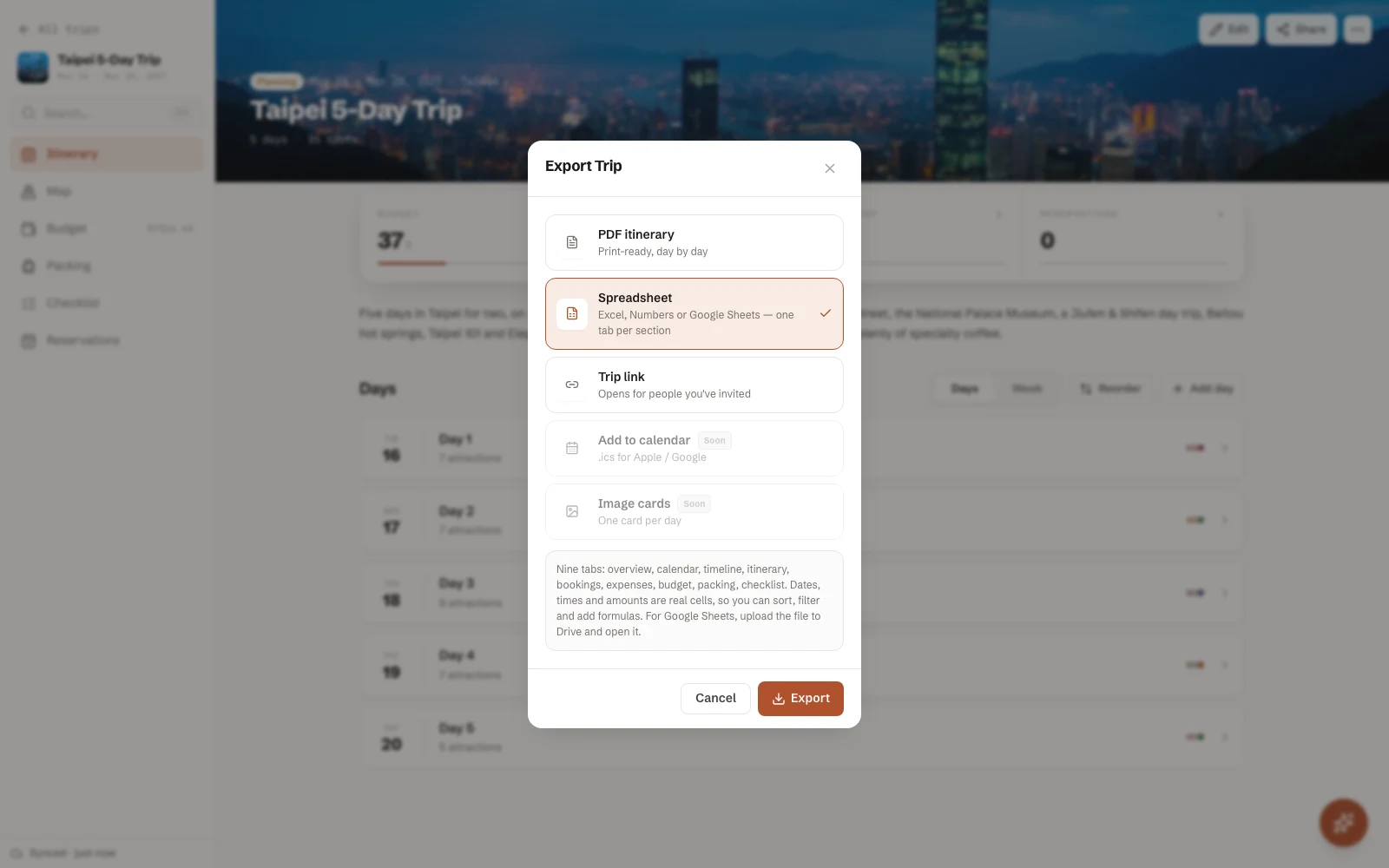
.xlsx) export on the free plan. When you want to archive the trip, customize formulas, or send a file to family members who never sign up for web apps, click Export -> Spreadsheet (.xlsx).
Try the 9-tab .xlsx workbook before signing up
You do not need an account to inspect the exact file DimTrip generates. Download the Kyoto & Osaka 4-day sample workbook (.xlsx) — exported directly from our Kyoto and Osaka 4-day trip — and open it in Microsoft Excel, Google Sheets, or Apple Numbers.
Every exported workbook includes nine structured tabs with typed dates, start times, category colours, and automatic SUM and budget formulas (when expense or budget rows are present):
- Overview — trip dates, destinations, and summary totals
- Calendar — a week-at-a-glance layout on one sheet
- Timeline — a clean day-by-day reading schedule for the road
- Itinerary — a flat, sortable, filterable stop table
- Bookings — flights, hotels, confirmation numbers, plus Paid and Cancel-by columns
- Expenses — itemized expenses with a
SUMtotal in the trip currency when expenses are present - Budget — per-category limits, spent totals, remaining headroom, and percent used
- Packing — categorized packing checklist
- Checklist — pre-trip tasks and deadlines
The hybrid workflow that works best
You do not have to pick one camp forever:
- Draft and iterate in DimTrip while dates, stops, opening hours, and group preferences are still moving — especially if you plan on a desktop browser alongside friends (see how to plan a trip with friends).
- Use the browser / PWA on the road: Keep previously synced trips readable offline (and queue stop or packing edits without signal), and log new foreign-currency expenses whenever you are back online so everyone shares the same 46-currency budget.
- Export the 9-tab
.xlsxworkbook (or a clean PDF) whenever you want a permanent archive, custom post-trip expense splits, or a no-login copy for relatives.
Still weighing dedicated travel apps too? Read our honest comparison of DimTrip, Wanderlog, Mindtrip, and TripIt or see how a browser and PWA trip planner works without app store downloads.
Frequently asked questions
- Can I export my DimTrip itinerary to Microsoft Excel or Google Sheets?
- Yes. DimTrip includes a free 9-tab Excel (.xlsx) export on the $0 plan with no ads. The workbook opens natively in Microsoft Excel, Google Sheets, and Apple Numbers with typed dates, start times, category colours, and automatic SUM (in the trip currency when expenses are present) and budget formulas.
- Can I inspect DimTrip's Excel workbook format before creating an account?
- Yes. You can download our real 4-day Kyoto and Osaka sample .xlsx workbook directly from this guide with zero sign-up required.
- Why use DimTrip instead of pasting ChatGPT output into Google Sheets?
- Copying chat text into a sheet forces you to rebuild rows, shift times, update formulas, and cross-check maps by hand whenever plans move. DimTrip's AI writes directly into your live schedule, checks time overlaps, asks before deleting by default, and exports a clean spreadsheet when you want one.
- Does DimTrip sync live with Google Sheets automatically?
- No. DimTrip exports a standard .xlsx file that you can import into Google Sheets or open in Excel anytime; it does not maintain a two-way live sync with a Google Sheets document.
- When should I stick with a plain spreadsheet instead of DimTrip?
- Stick with Excel or Google Sheets if your group refuses to create any new account, or if you need highly custom formulas such as weighted credit-card cashback or per-person ratio splits. Even then, you can draft in DimTrip and export .xlsx at the end.
More guides
View all guides- ComparisonTrip planner apps compared: DimTrip, Wanderlog, Mindtrip & TripItHow five common ways to plan a trip actually compare — desktop and mobile support, AI editing, live group collaboration, offline access, exports and where each tool falls short.
- How toThe hour-by-hour itinerary templateA simple table to copy, four rules of thumb, one filled-in Kyoto day — and how to turn it into a real PDF or Excel (.xlsx) workbook in DimTrip.
- ComparisonBrowser & PWA trip planners: why no app store download is neededHow an installable Progressive Web App gives you full desktop planning and phone access with zero App Store friction — plus the honest boundary of what works offline.
- How toHow to plan a trip with friends without the group-chat chaosSix steps that turn "we should totally go" into a trip that actually happens, with everyone still friends at the end.
- How toHow we let an AI assistant edit a live shared itinerary safelyA practical engineering look inside DimTrip: RLS-scoped MCP tools, ordered reviewable edit runs, thread-scoped short handles, zero-AI-turn Undo, and an offline three-way merge outbox.
- ItineraryTokyo in 5 days, planned by an AI assistantOne request to DimTrip's assistant produced this first visit: food markets, old neighbourhoods, coffee most days and a day trip to Kamakura. Here is the request, the plan and what we fixed in the chat.